Create an invoice from a document
Upload a PDF or image, review suggested details and confirm the saved recipient.
Use Invoices → Upload invoice when you already have a sales invoice. This needs invoice-management access, enabled workspace AI, available credits and configured document storage.
1. Upload and give consent
Choose one PDF, JPEG, PNG or WebP, up to 5 MiB. PDFs may contain 1–5 pages and must not be password-protected. Images may contain up to 16 megapixels.
Confirm Share document with OpenAI before selecting Extract details. The whole document can include personal and financial information; share only a file you are authorized to process. Extraction currently costs 5 AI credits per provider attempt.
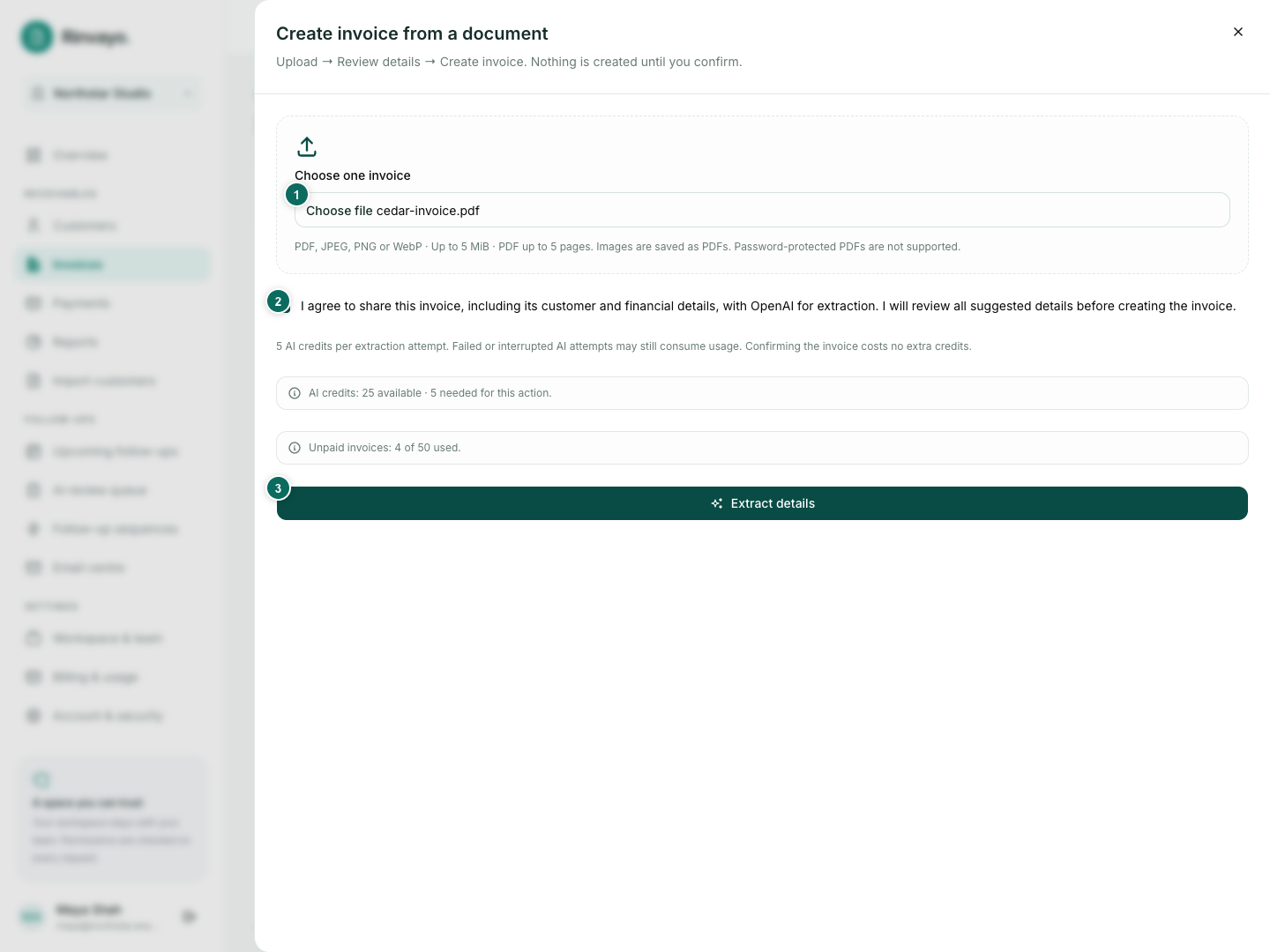
2. Review the suggestions
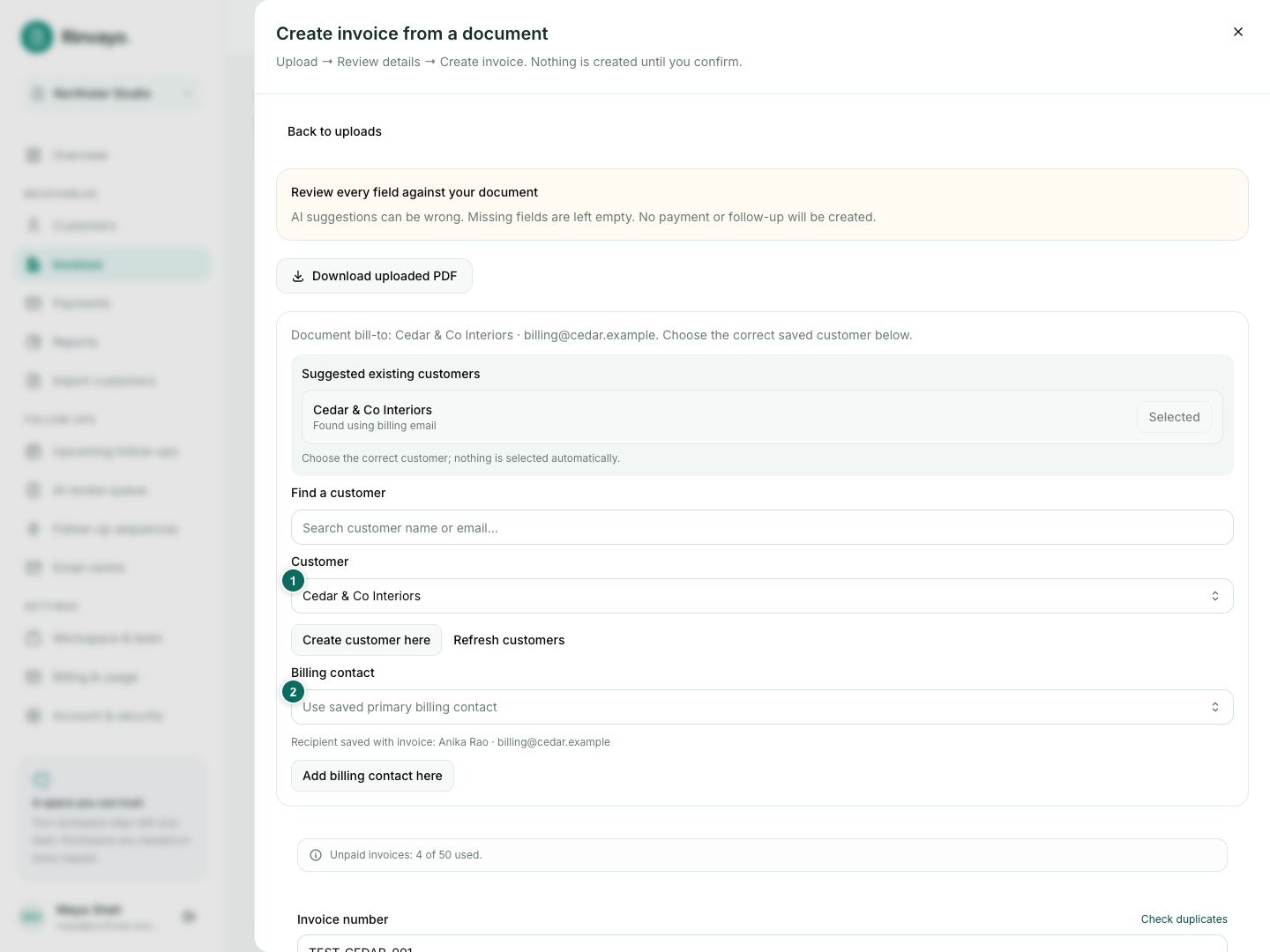
Check the invoice number, issue date, due date, currency and full original total. The total is not the remaining balance after earlier payments. Missing or uncertain fields need your attention.
Suggested customers are matches to review, not automatic identity confirmation. Choose the existing customer and saved billing contact. With customer-management access, you can create them here without leaving the review. An email printed on the document does not replace the saved recipient automatically.
3. Create the invoice
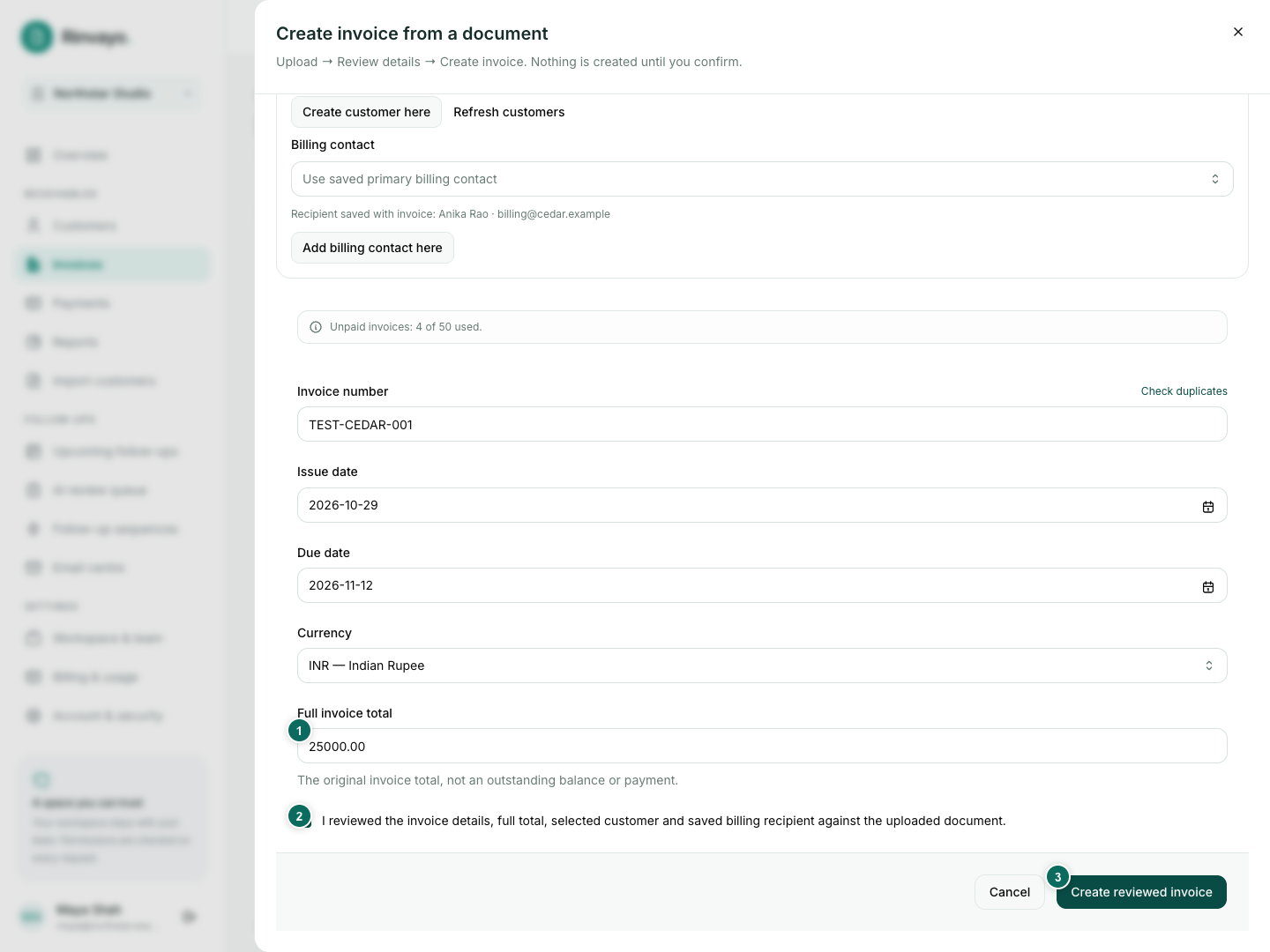
Select I reviewed the invoice details and billing recipient, then Create reviewed invoice. Nothing is created or emailed before confirmation. The saved invoice starts open for its full amount, with the uploaded PDF attached. Record existing payments separately after verification.
Completed uploads can be reopened from the upload view for up to 24 hours. Confirmation still checks current access, duplicates, contacts and plan capacity. If extraction fails, create the invoice manually; do not assume a failed AI attempt was free.